We need two-factor authentication (2FA) because passwords alone are no longer safe; they can be guessed, leaked in data breaches, or stolen through phishing. 2FA stops hackers by adding an extra security step, requiring both a password and a second piece of proof like a phone code or key.
Set up 2FA
- Sign in to the Account Panel and open Settings.
- In the Security section, select Edit 2FA Status.
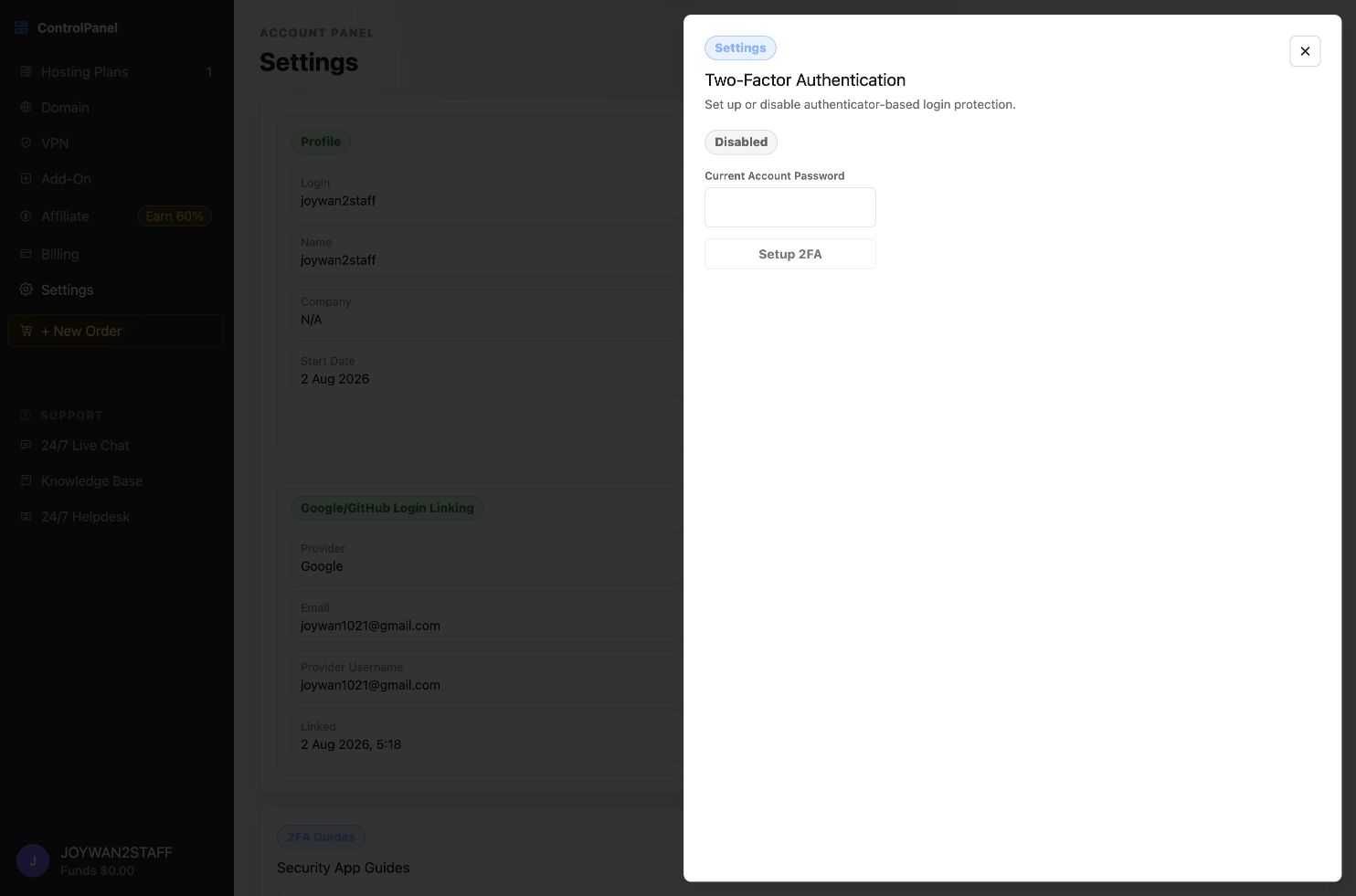
- Enter the current Account Panel password and select Setup 2FA.
- Scan the QR code with an authenticator app, enter the generated code, and complete the setup.
After 2FA is enabled, enter the current code from your authenticator app when prompted during sign-in. Store any recovery information in a secure location.
Article ID: 2348, Created: August 2 at 6:18 AM, Modified: August 4 at 2:33 AM