How-To
The file manager makes it easy to manage your website content online. You can compress, transfer files/folders etc via it. By default, we created two folders for every new customer under account root folder, the db folder and default site root folder. You can upload files into either of those folders, however, please do not upload files/folders into account root folder.
- Sign in to your Hosting Control Panel > Files, select a specific site root folder and select the upload icon on that page to upload files to your account.
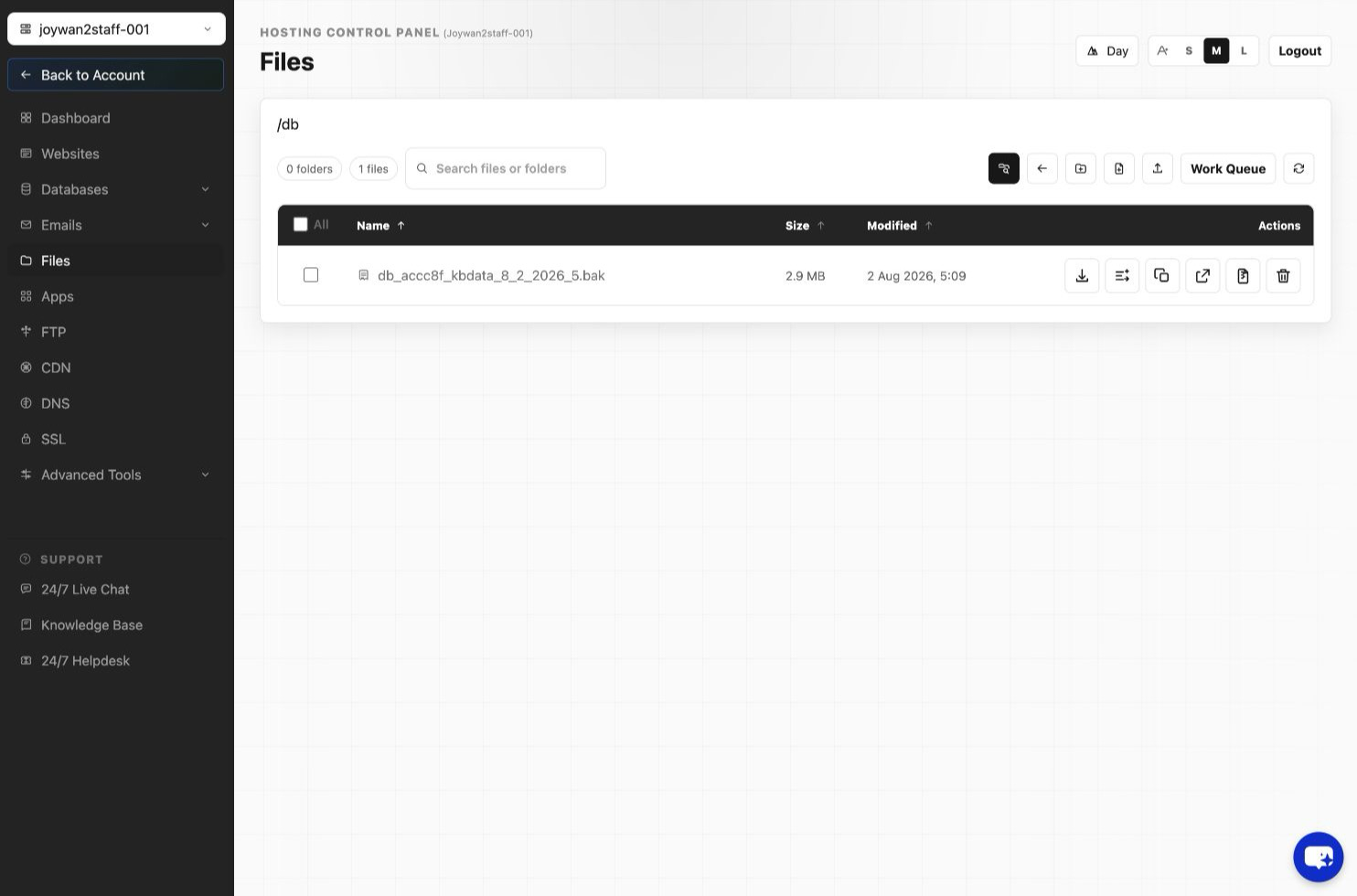
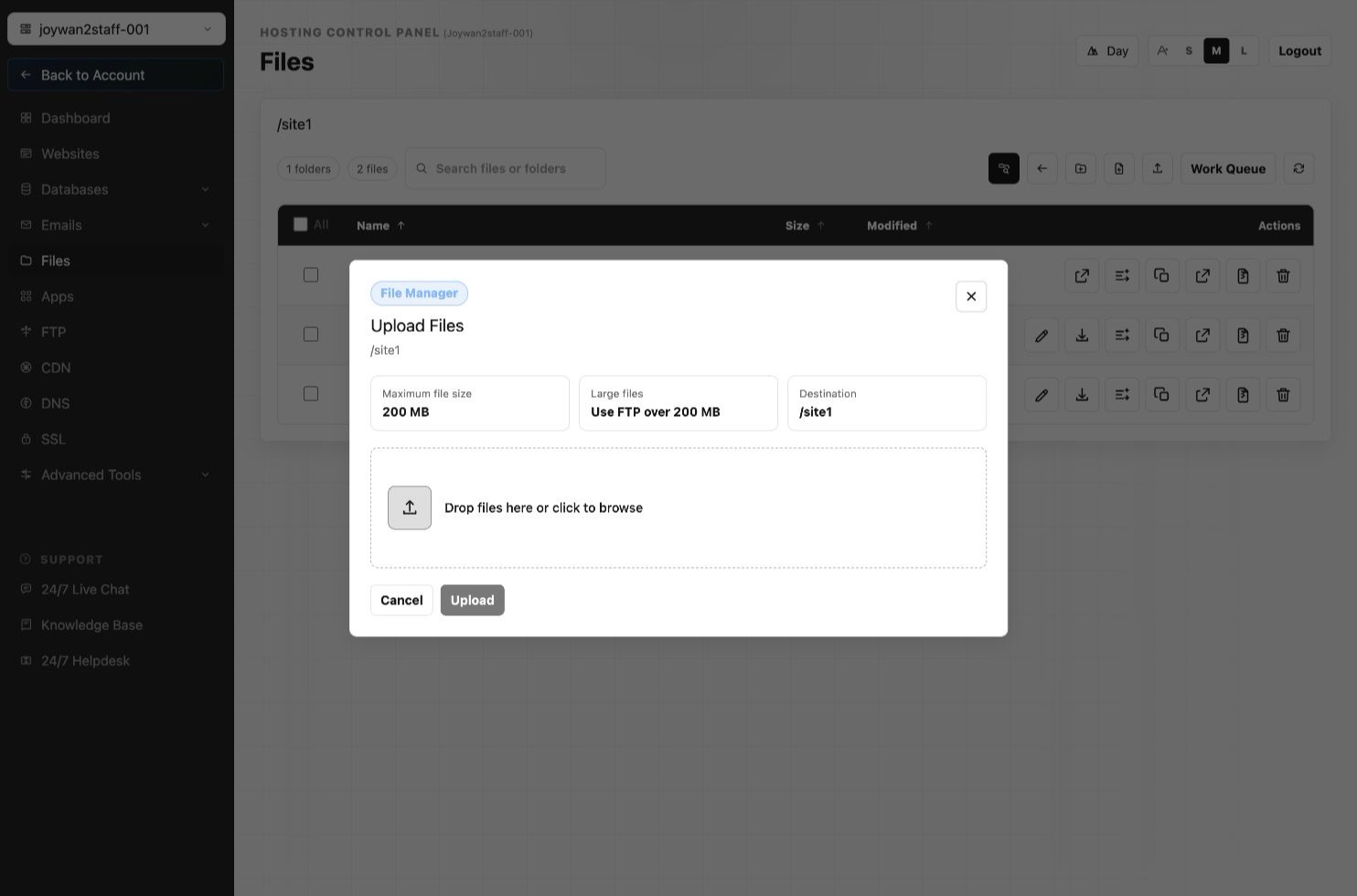
- Sign in to your Hosting Control Panel > Files, select a specific file and select the download icon on that page to download it. Note, you cannot download a folder or multiple files via file manager. However, you can zip them first and then use the download function to download them.
Important information
If you got a blank page when you click 'upload'/'download' icon that is because you did not install Java runtime on your local computer, please download it and install it on your local computer first, you can download it by this link, and please follow this instruction to enable it. Now you can use the function freely.
Article ID: 2391, Created: August 2 at 7:29 AM, Modified: August 4 at 2:28 AM